Welcome to the Zertic manual. To start, select whether you will use the manual as an end-user or superuser from the following two yellow tabs.
User Stories
To help you get started and find your way around, we have created a user story map. This clickable map guides you through the system based on your role—whether you’re a Salesperson, Auditor, Reviewer, or another user. Quickly filter and access core functionalities tailored to your needs, ensuring a streamlined and efficient experience.
Role Identification: The map is divided by process. The puppets above the diagram represent different user roles. Below each puppet are the main processes (log-in, application/renewal, etc), and the main tasks are below those. The clickable white cards with the colored borders, describe actions performed by the user. The border color of each action is designed to quickly indicate the intended user, matching with the color of the corresponding user puppet. This visual cue helps you easily identify which actions are relevant to your role.
Manual Access: You can click on each action (white card) to see the relevant section in the manual, providing detailed guidance and instructions for that specific action.
Hover over the map to zoom in/out or to make the map full screen.
- Fullscreen: In full screen mode, you can navigate by role or functionality to view specific tickets. To see all tickets again, click reset in the navigator menu.
Navigate by role: to focus on tasks by specific roles like planner or auditor, click on a role in the navigator menu. To see all tickets again, click reset in the menu.
Navigate by functionality: To focus on specific functionalities like Single-Site or Multi-Site scenarios, click on a functionality in the navigator menu. To see all tickets again, click reset in the menu.
To see all user stories per role, click on one of the following links.
The Dashboard
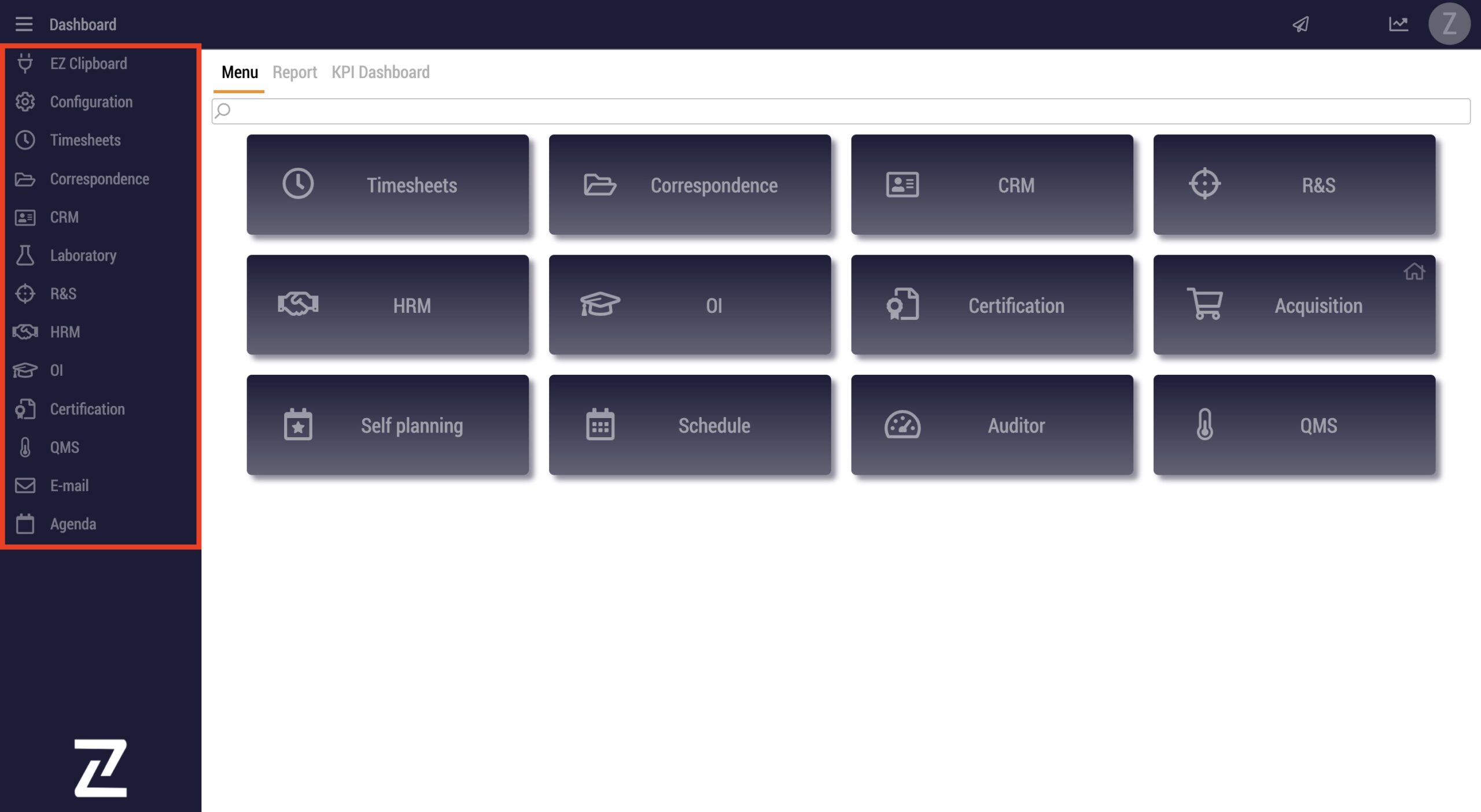
When you enter the system, the dashboard is the entry point to your system. Depending on your role, here you will see all module tiles available to you such as Acquisition and Auditor. By clicking on a module tile on the dashboard, you can enter the module.
You can always return to the dashboard from any module or screen by clicking on Dashboard in the top left of the screen.

The system has multiple modules available. More information about modules in general can be found here. Specific information about each module can be found by clicking one of the links on the left.
It is also possible to open multiple modules. To do this, right-click on another module you would like to open. A new browser tab will open with the other module.
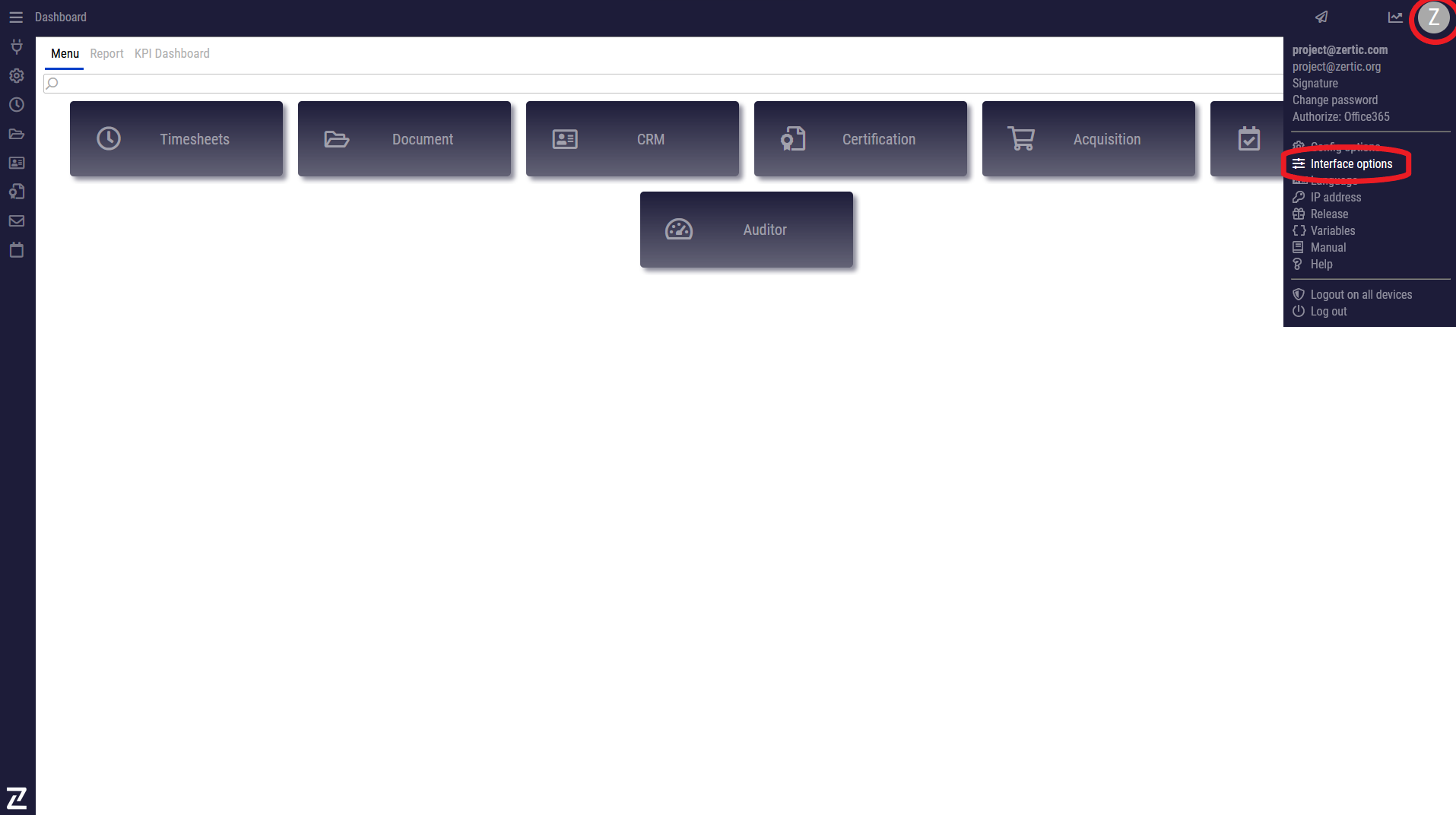
In the top right corner of the screen is a picture of you or your first initial. When you hover over the picture or letter, a menu will drop down. Here you can view or change your signature, change your password, and sync your email to the planner. Also, by clicking on Interface options, you can change a few personal settings. In interface options, you can choose your homepage and change the language. To save your settings use the green dot in the top left corner. To close without saving, click the red button.
Within each module, the same actions can be found.
- left click ⇒ selects the item (selects a task or item in any field)
- double-click ⇒ open the properties of an item
- right mouse click ⇒ open the sub-menu (same as clicking on ‘More’ underneath a task)
- click and hold ⇒ drag and drop to move an item
- ⇒ slides window left/right
- ⇒ slides window up/down
- green dot ⇒ save, send email (optional), and move the task to the next step in a workflow
- red dot ⇒ not saved, sent, or moved to the next step in a workflow
- orange dot ⇒ popup is minimized to the bottom left corner
Watch a video about modules and actions in the academy.
Configuration
Here you can find information about how to configure the system.
System Implementation
Here you can find everything you need to begin implementing the system.
Configuration
Here you can find information about how to configure the system.
System Implementation
Here you can find everything you need to begin implementing the system.